Savoia Studio
Savoia Studio is a desktop database client for PostgreSQL and MySQL/MariaDB. It is written in Rust and draws its UI on the GPU, with no webview or JVM, so it starts fast and stays light on memory.
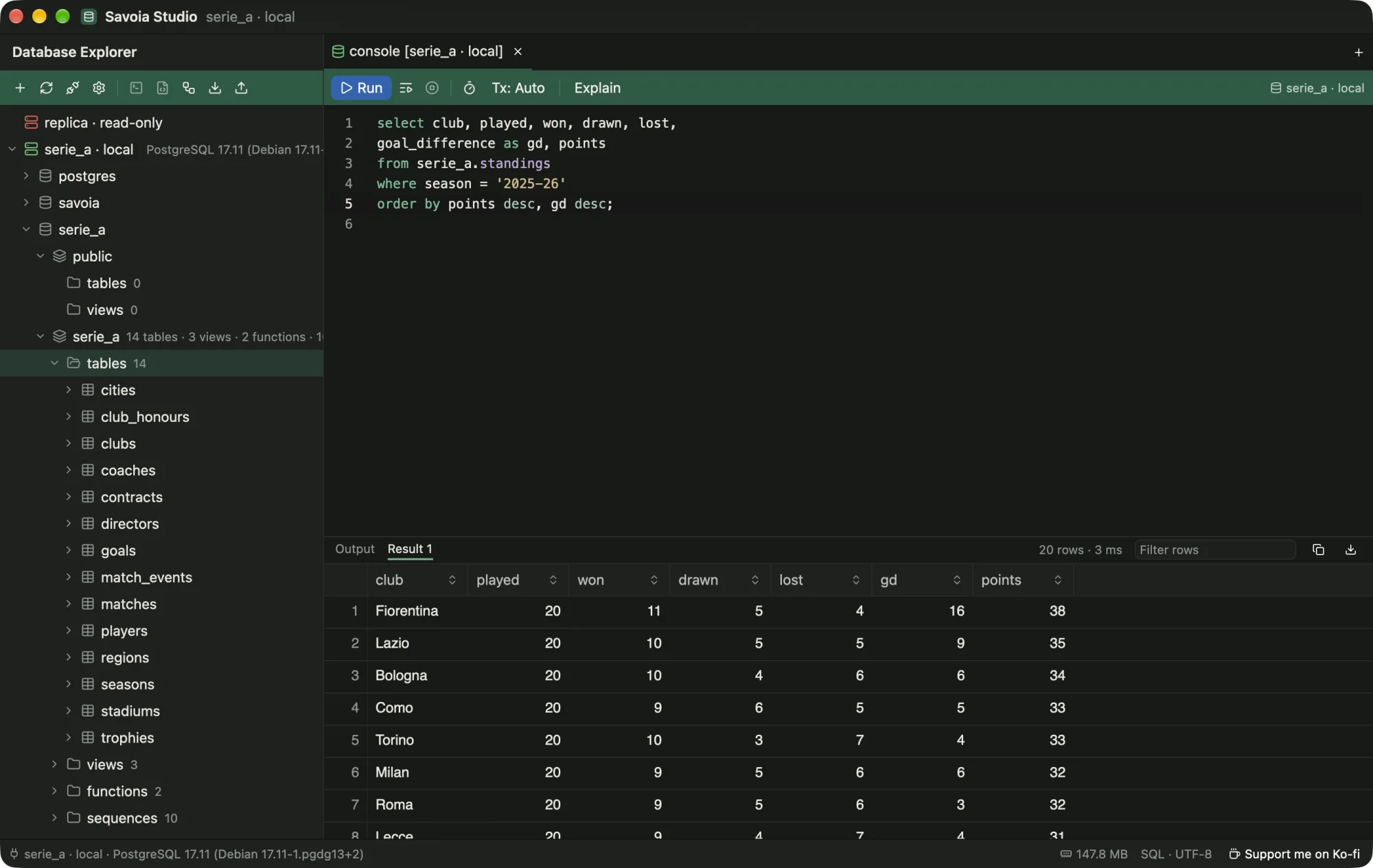
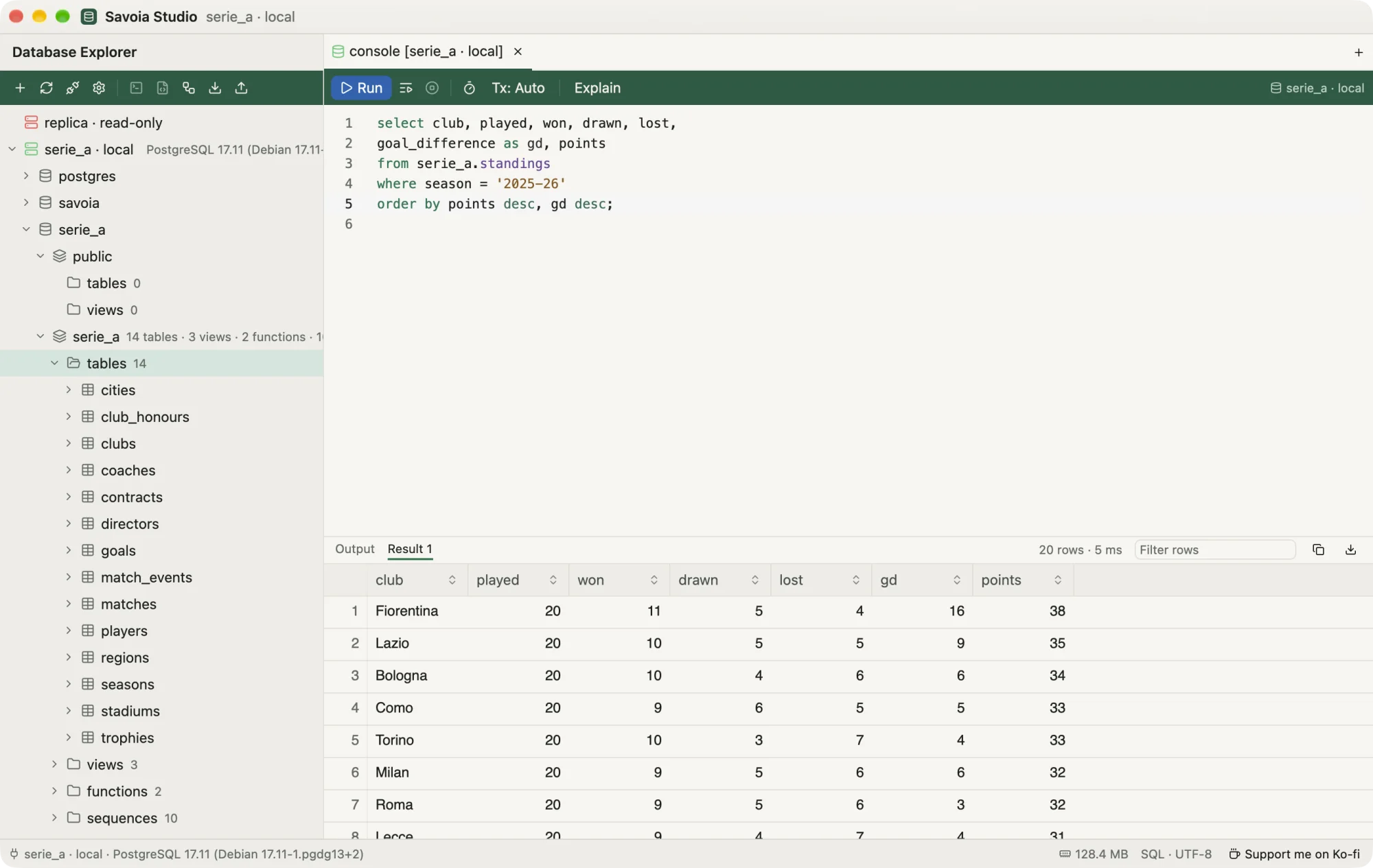
Free. No trial, no license key, no paid tier, no account.
Open source under MIT or Apache-2.0. If it saves you time, you can support it on Ko-fi.
What you can do with it
- Explore schemas, tables, views and functions, with ER diagrams and DDL.
- Write SQL with schema-aware completion, run it statement by statement, and stream big results.
- Browse, filter, edit and join table data without writing SQL. Edits are reviewed as SQL before they commit.
- Dump and import whole schemas or single tables, with your installed client tools or the built-in engine.
- Connect through SSH tunnels and over TLS.
Coming soon
Savoia speaks PostgreSQL and MySQL today. Support for more databases is on the way, free like everything else:
| Database | Status |
|---|---|
| PostgreSQL | Supported |
| MySQL | Supported |
| MariaDB | Works through a MySQL connection today; dedicated support coming |
| SQLite | Coming soon |
| SQL Server | Coming soon |
| MongoDB | Coming soon |
Want one sooner, or one that isn't listed? Say so on GitHub.
Start here
- InstallDownload for macOS, Windows or Linux.
- ConnectAdd a data source in one paste.
- Write SQLCompletion, running, results.
- Edit dataChange rows with a SQL preview.
The screenshots and recordings in these pages are of the real app, connected to a local PostgreSQL 17 with the Serie A sample database from the repository (samples/).
Install
Download the installer for your system from the latest release.
| System | File |
|---|---|
| macOS (Apple silicon) | savoia-studio_<version>_aarch64.dmg |
| macOS (Intel) | savoia-studio_<version>_x64.dmg |
| Windows | savoia-studio_<version>_x64-setup.exe, or savoia-studio_<version>_x64_en-US.msi |
| Debian, Ubuntu | savoia-studio_<version>_amd64.deb |
| Fedora, openSUSE | savoia-studio-<version>-1.x86_64.rpm |
| Any Linux | savoia-studio_<version>_x86_64.AppImage. Make it executable (chmod +x) and run it. |
Updates
Savoia checks GitHub Releases for a new version when it starts. When it finds one, a notification offers Install and restart; nothing installs until you click it. Each download is verified against a signature before it installs. You can turn the startup check off in Settings › General › Updates, and check by hand from the command palette (Check for updates).
The .deb and .rpm packages don't update themselves. Install the new package over the old one.
First launch warnings
Until the installers are code-signed, macOS and Windows warn the first time you open the app:
- macOS: right-click Savoia Studio in Applications, choose Open, then Open again.
- Windows: on the SmartScreen prompt, choose More info, then Run anyway.
Build from source
You need Rust stable:
git clone https://github.com/joaoGabriel55/savoia-studio
cd savoia-studio
cargo run -p savoia-app --release
On Linux, install the system libraries first: libxkbcommon-dev libxkbcommon-x11-dev libwayland-dev libvulkan-dev libfontconfig-dev libx11-xcb-dev libssl-dev.
Connect to a database
Click + in the Database Explorer to add a data source. Pick PostgreSQL or MySQL and fill in the host, port, user and database. You can also paste a URL such as postgres://user@host:5432/db and click Import to fill the form. Test tries the connection, and Save & Connect saves it and connects.
- Password. Tick Save passwords to store them in a file only your user can read, in the app's data folder. Otherwise Savoia asks for the password when you connect and forgets it when you quit.
- SSL mode. Disable, Prefer, Require or Verify full. Only Verify full also checks the server's certificate and host name against your system's trust store.
- SSH tunnel. Enter the bastion host, user and key or password. The first connection to an unknown host shows its key fingerprint. Trust it only if it matches the server's key; it is then added to
~/.ssh/known_hosts. - Read-only. Read-only sessions refuse writes on the server side, and the data view hides its edit controls.
- Color. A color tags the connection's tabs, so production stands out from local.
Double-click a data source to connect. Expand it to load its schemas; objects load as you open them.
Write and run SQL
Each console tab is bound to one data source. Open one with ⌘T (Ctrl+T on Windows and Linux) or the + on the tab bar.
JOIN, completion offers the clause from the foreign key. ⌘↩ runs it.- ⌘↩ runs the statement under the caret, or the selection if there is one.
- ⌘⇧↩ runs the whole script.
- Completion suggests schemas, tables and columns from the loaded catalog. After
JOIN … ON, it suggests join conditions from foreign keys. - A statement with several result sets shows one tab per result. Big results stream in and pause once the grid is full. Then you can scroll for more, Load all, Skip rest, or cancel.
- In the result grid, click a header to sort and use the filter box to hide rows. You can copy cells as TSV, CSV, JSON or
INSERT, or export the whole result to CSV. - History keeps every run with its time, duration and row count. Search it and reopen a query in the console.
Browse and edit data
Right-click a table and choose Open data to browse it without writing SQL.
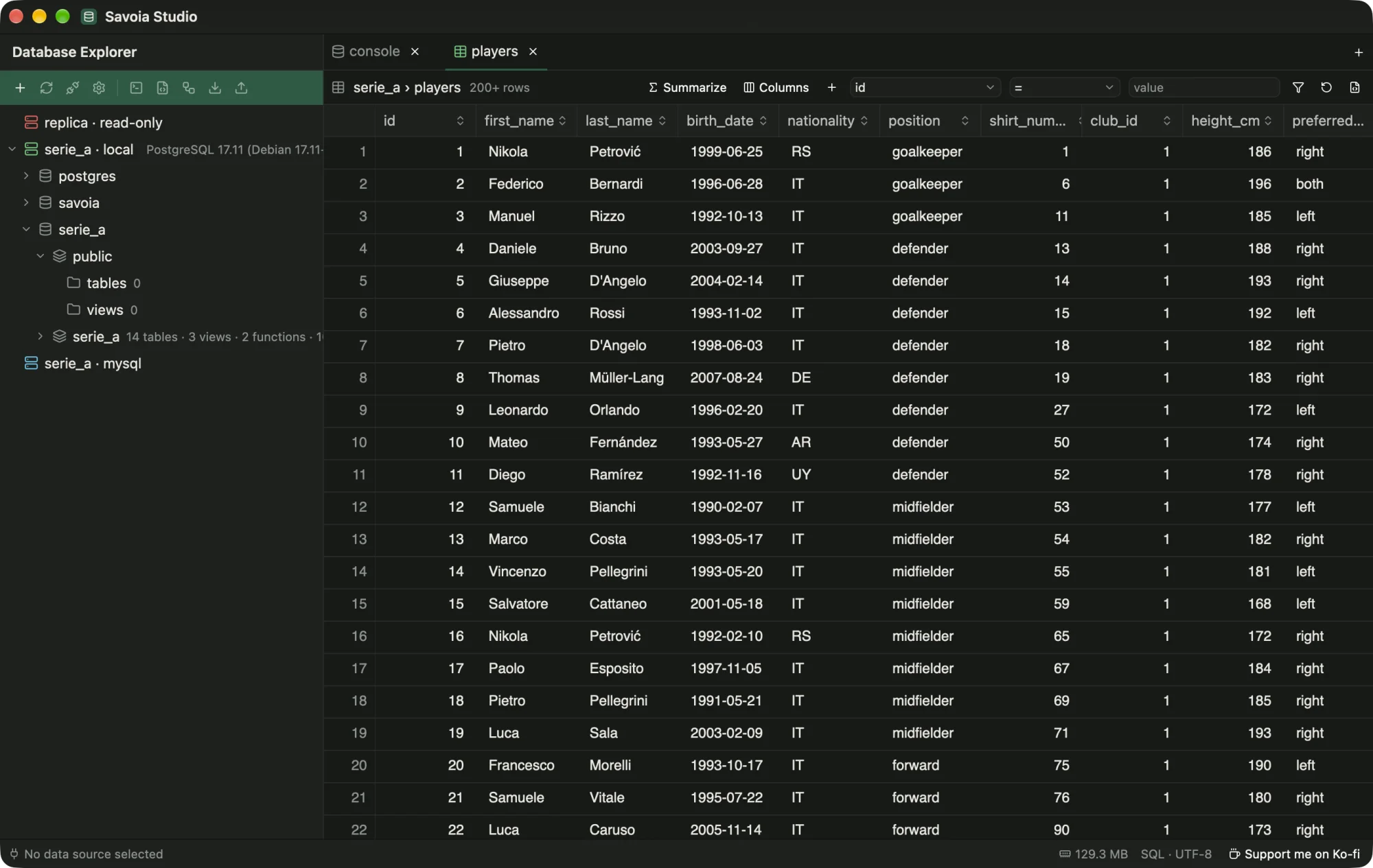
serie_a.players.- Data loads in pages of 200 rows. A header click sorts on the server, and filter chips build the
WHEREclause. - + Column adds values from related tables through foreign keys, or summaries of child rows (count, sum, min, max, avg, list). Join another table… covers relations the schema doesn't declare.
- Summaries group rows and aggregate them. Save as query opens the SQL in a console.
- Edits. Change cells, add rows or delete rows on tables with a key. Pending changes are highlighted. Review SQL shows the statements, Commit runs them in one transaction, and Discard drops them.
- View SQL or Open in console show the query behind the view.
Dump and import
Use Dump… and Import… on the explorer toolbar, or Export… and Import… on a table's menu.
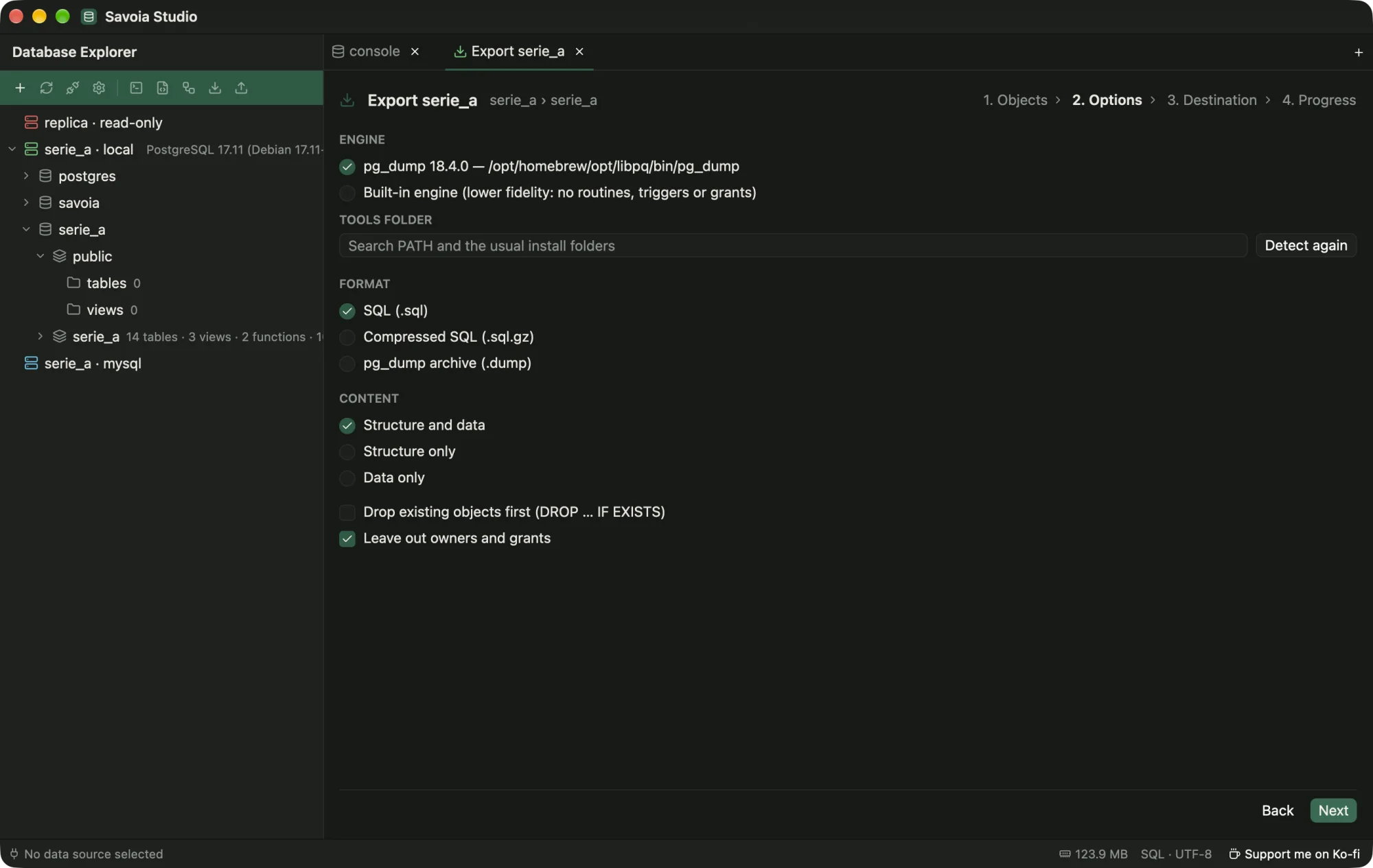
pg_dump on its own.Savoia uses the client tools you already have (pg_dump, pg_restore, psql, mysqldump, mysql). It finds them on PATH and in the usual install folders, such as Homebrew, Postgres.app and the EDB or Oracle installers. If yours live elsewhere, set the folder in Settings › Dump tools. pg_dump must be at least as new as the server, and Savoia warns when it isn't.
With no usable tool, the built-in engine writes plain SQL (optionally gzipped) or CSV from one consistent snapshot.
Imports run .sql scripts, including $$ bodies and MySQL DELIMITER blocks, and CSV files with a column mapping. Dumps and imports work through SSH tunnels too.
Keyboard and command palette
⌘⇧P (Ctrl+Shift+P) opens the command palette. Type to filter it, and press ↩ to run the highlighted command. Every app-wide command is in the palette, with its shortcut beside it.
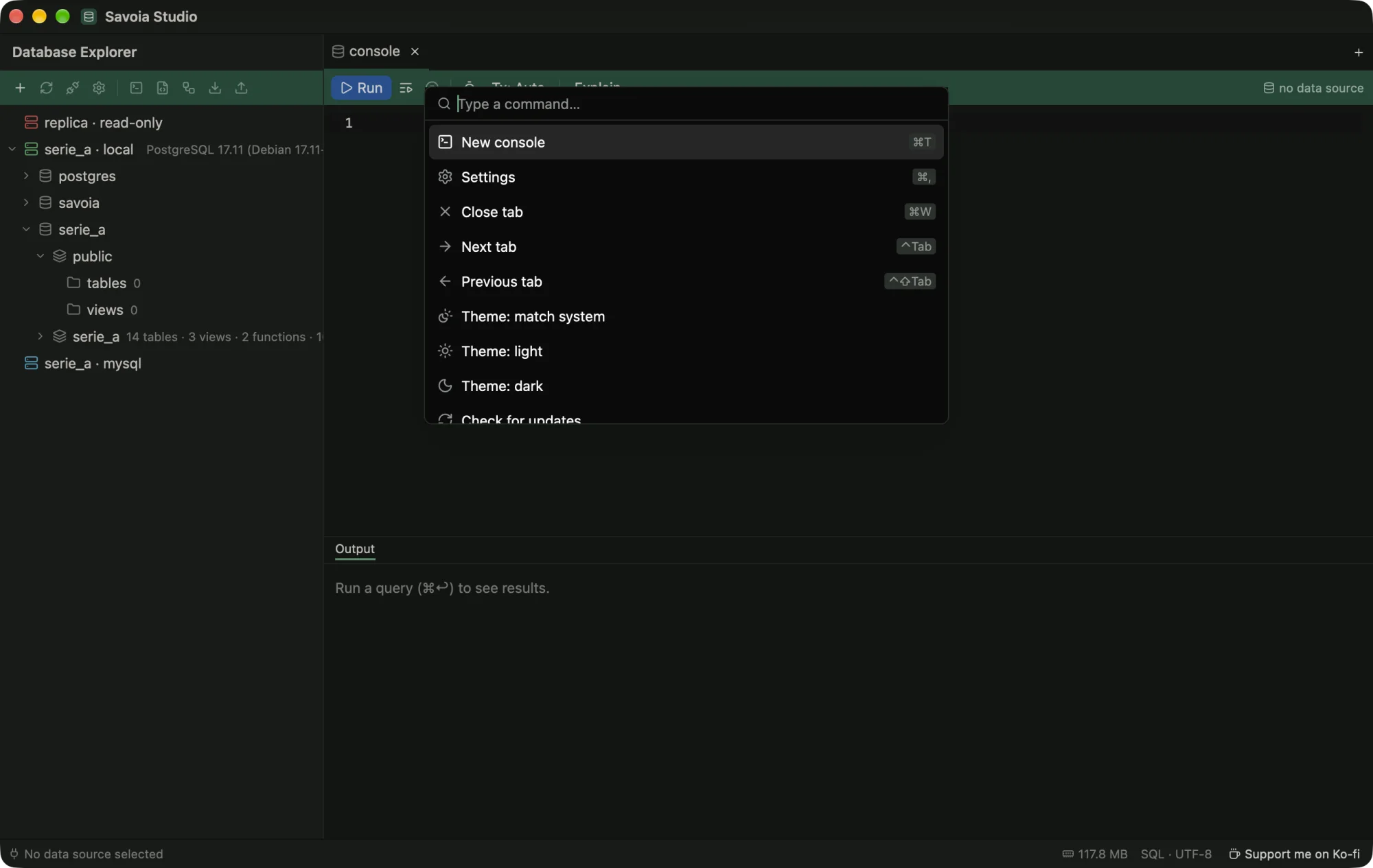
| Command | macOS | Windows, Linux |
|---|---|---|
| Command palette | ⌘⇧P | Ctrl+Shift+P |
| New console | ⌘T | Ctrl+T |
| Settings | ⌘, | Ctrl+, |
| Close tab | ⌘W | Ctrl+W |
| Next tab / previous tab | ⌃⇥ / ⌃⇧⇥ | Ctrl+Tab / Ctrl+Shift+Tab |
| Run statement at the caret | ⌘↩ | Ctrl+Enter |
| Run whole script | ⌘⇧↩ | Ctrl+Shift+Enter |
| Quit | ⌘Q | Ctrl+Q |
Settings › Keyboard shows the same list in the app.
Settings
Open Settings with ⌘, (Ctrl+,) or from the command palette.
- General › Appearance. Match system, Light or Dark. Match system follows the OS, including when it switches while Savoia is open. The palette commands Theme: light, Theme: dark and Theme: match system switch it too.
- General › Updates. Turns the update check at startup on or off. Check now checks right away.
- General › Privacy. Offer to report crashes. See Privacy.
- Dump tools. The folder where your database client tools live.
- Keyboard. Every shortcut.
- About. The version, links, and the Ko-fi button.
Settings are saved in the app's data folder, next to your saved connections.
Privacy
Savoia Studio has no account and no telemetry.
Network. Savoia connects to the databases and SSH hosts you configure. The only other request is the update check at startup, which fetches latest.json from GitHub Releases. You can turn it off in Settings › General › Updates.
Stored data. Saved connections, query history and settings are kept in a SQLite file in the app's data folder. Saved passwords are kept in a separate file only your user can read:
| System | Folder |
|---|---|
| macOS | ~/Library/Application Support/savoia-db/ |
| Windows | %APPDATA%\savoia-db\ |
| Linux | ~/.local/share/savoia-db/ |
Crash reports. When Savoia crashes, it writes a text report to crashes/ in that folder. Nothing is sent. If you turn on Settings › General › Privacy › Offer to report crashes, the next start offers to open a GitHub issue with the report filled in. Read it first, since a panic message can include table names or values, then submit it or close the page. With the option off, Savoia keeps the last five reports and offers nothing.